How to Clean up Disk with Partition Resizer
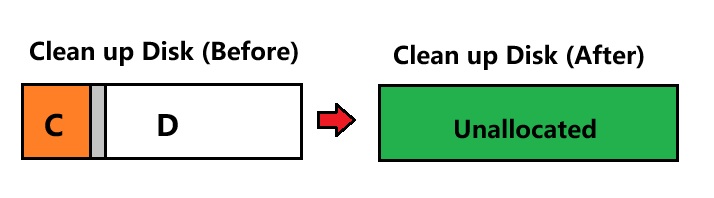
Clean up a disk will erase all partitions on the disk, and meanwhile all data stored on each partition of this disk will be erased too. After cleaning up a disk, the disk usually becomes uninitialized and it shows as unallocated space under Windows Disk Management. Therefore, you can clean up disk when you want to repartition disk to reallocate disk space. Then, do you know how to clean up disk? IM-Magic Partition Resizer is a partition magic tool, which enables you to clean up disk within a few simple steps.
How to Clean up Disk?
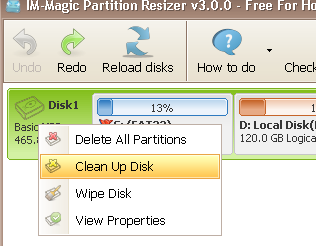
Step1. Right click the disk (not partitions) that you want to clean up and select "Clean Up Disk" option.
Step2. It will pop up warning message, you just need to click "Yes" to confirm clean up the selected disk.
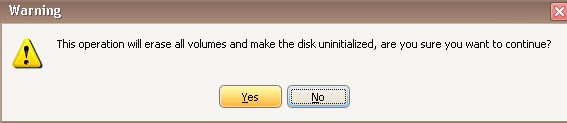
Step3. It will alert you that it can cause your computer to be unbootable after cleanup system / boot partition, you just need to click "Yes" to confirm again to clean up the disk.

Step4. Click "Apply Changes" button
Check the disk in Disk Management, and it will show as following.
Tip:
1. Back up important data in advance, as cleaning up the disk will erase all volumes and data, leaving the entire disk unallocated.
2. Your computer will be unable to boot after cleaning up the system or boot partition if you have not changed the boot order in the BIOS. "Clean Up Disk" is intended only for data disks or for the original OS disk after you have cloned it and are booting from the new OS disk.
For Windows 11/10/8/7 => Download Partition Resizer Free [100% Free]
For Windows Server 2025-2003 => Download Partition Resizer Server [Trial]